Dropbox HIPAA BAA: Eligible Plans, Setup, And Compliance

Storing protected health information (PHI) in a cloud service without a Dropbox HIPAA BAA in place puts your organization at serious legal and financial risk. A Business Associate Agreement isn't optional, it's a federal requirement under HIPAA whenever a third party handles, transmits, or stores PHI on your behalf. Miss this step, and you're exposed to penalties regardless of how secure your actual workflows might be.
The good news: Dropbox does support HIPAA compliance, but only on specific subscription tiers and only after you've taken deliberate steps to sign the BAA and configure your account correctly. Choosing the wrong plan or skipping a single configuration step can leave gaps that no amount of good intentions will close.
At SoFaaS, we build HIPAA-compliant infrastructure for healthcare data integration, helping healthcare innovators connect applications to EHRs through our managed SMART on FHIR platform. We know firsthand how critical it is to get every link in your compliance chain right, whether that's EHR connections or the cloud storage tools your team relies on daily. This guide breaks down which Dropbox plans qualify for a BAA, how to execute the agreement, and the account settings you need to lock down to maintain compliance.
What a Dropbox HIPAA BAA is
A Business Associate Agreement (BAA) is a legally binding contract required under the Health Insurance Portability and Accountability Act (HIPAA) whenever a covered entity shares protected health information with a third-party vendor. Dropbox qualifies as a "business associate" the moment your team uses it to store, transmit, or access files that contain PHI. Without a signed agreement in place, your organization bears full liability for any breach or misuse of that data, even if Dropbox itself is the source of the problem.
The Legal Foundation of a BAA
HIPAA's Privacy Rule and Security Rule establish the framework that makes BAAs mandatory. The U.S. Department of Health and Human Services (HHS) defines a business associate as any person or entity that creates, receives, maintains, or transmits PHI on behalf of a covered entity. Dropbox fits squarely inside that definition the moment a healthcare organization uses it for patient files, billing records, or any other documents containing protected information.
Failing to execute a BAA before sharing PHI with a vendor is a direct HIPAA violation that can trigger civil and criminal penalties, regardless of whether an actual breach ever occurs.
The penalties for non-compliance scale with the level of negligence, ranging from $100 to $50,000 per violation, with annual caps reaching $1.9 million per violation category according to HHS enforcement guidance. Signing a BAA doesn't just check a legal box; it establishes documented accountability for how your PHI is handled, stored, and protected across that vendor's entire infrastructure.
What the Agreement Actually Covers
A Dropbox HIPAA BAA specifies the exact permitted uses and disclosures of PHI that Dropbox can make on your behalf. The agreement outlines Dropbox's obligations to implement technical safeguards, report breaches within required timeframes, and ensure that any subcontractors they engage are bound by equivalent standards. You're not just getting a signature; you're getting a formal chain of accountability that extends through Dropbox's operations.
Your responsibilities don't disappear once you sign. You remain accountable for configuring your Dropbox account in ways that actually protect PHI, because the BAA alone doesn't make every feature you use compliant. Certain capabilities, such as externally shared links or third-party app integrations, may still introduce compliance gaps unless you address them directly. Understanding the boundaries of what the BAA covers, and what it leaves in your hands, is critical before you store any sensitive data.
How Dropbox Positions Itself as a HIPAA-Ready Platform
Dropbox built specific infrastructure controls to support the technical safeguard requirements that business associates must meet under HIPAA. These controls include encryption at rest and in transit, access logging, and administrative tools that eligible plan subscribers can use to manage PHI responsibly. The platform's compliance posture makes it a viable option for healthcare teams, but only when you pair the correct subscription tier with deliberate account configuration.
Completing a Dropbox HIPAA BAA is the foundational step, but it is not the finish line. The signed agreement activates Dropbox's contractual commitment to handle your PHI responsibly, while your configuration choices determine whether that commitment translates into actual, auditable security. Both sides of this equation carry equal weight when your organization faces an HHS audit or a breach investigation.
Who needs one and when
Any organization that qualifies as a covered entity under HIPAA and uses Dropbox to handle patient information needs a signed BAA before storing or transmitting a single file containing PHI. This applies broadly across healthcare, not just hospitals or clinics. If your workflows touch patient records, billing data, insurance documentation, or any other individually identifiable health information, and Dropbox is part of that workflow, the requirement applies to you.
Covered Entities That Store PHI in Dropbox
Covered entities include healthcare providers, health plans, and healthcare clearinghouses that transmit PHI electronically. If you're a physician's office uploading patient intake forms, a home health agency storing care notes, or a durable medical equipment (DME) provider keeping insurance authorizations in shared folders, you fall into this category. Business associates, meaning vendors and subcontractors who handle PHI on behalf of covered entities, also need their own BAA with Dropbox if they use the platform directly.
If your business receives, processes, or stores PHI on behalf of a healthcare client, you're a business associate and you need a Dropbox HIPAA BAA regardless of how briefly that data passes through your systems.
The list below covers the most common organizations that typically need a BAA with Dropbox:
- Healthcare providers (hospitals, clinics, private practices, telehealth platforms)
- Health insurance companies and managed care organizations
- DME suppliers and home health agencies
- Ambulance and non-emergency medical transport (NEMT) providers
- Medical billing and coding companies
- Health IT vendors and software developers building on healthcare data
When the Requirement Is Triggered
The obligation to sign a BAA is triggered the moment PHI enters your Dropbox environment, not after you've accumulated a certain volume of files or crossed some usage threshold. A single uploaded document containing a patient's name alongside a diagnosis or treatment detail qualifies as PHI under the HIPAA Privacy Rule's definition, which makes the BAA requirement immediate.
Timing matters because auditors and investigators look at when PHI was first stored, not just whether a BAA eventually got signed. If a breach occurs before you've executed the agreement, your organization carries the full weight of that liability with no contractual protection in place.
Which Dropbox plans support a BAA
Not every Dropbox subscription tier gives you access to a BAA. Dropbox restricts HIPAA BAA eligibility to its higher-tier business and enterprise plans, leaving personal and entry-level team accounts entirely outside the scope of compliant PHI storage. Before you store a single patient file, confirm that your current plan actually qualifies.
Plans That Qualify for a BAA
Dropbox makes the Business Associate Agreement available to subscribers on its Business, Business Plus, and Enterprise plans, each of which includes the extended administrative controls required to support a HIPAA-compliant environment. The critical factor across all qualifying tiers is access to team-wide security policy enforcement, including audit logs, account activity reporting, and admin-level visibility into how files are accessed and shared.

The table below summarizes which plans carry BAA eligibility:
| Plan | BAA Available | Admin Controls | Audit Logs |
|---|---|---|---|
| Dropbox Business | Yes | Yes | Yes |
| Dropbox Business Plus | Yes | Yes | Yes |
| Dropbox Enterprise | Yes | Yes | Extended |
Dropbox does not surface the BAA as a standard checkout feature, so you need to proactively request it through Dropbox's sales or support team once your account is active on a qualifying plan.
Plans That Do Not Qualify
Personal accounts, Dropbox Plus, and Dropbox Essentials do not support a BAA, which means storing PHI in these tiers constitutes a direct HIPAA violation. Many healthcare professionals reach for a personal Dropbox account out of habit because it feels familiar and fast. Familiarity does not create compliance, and no folder structure or naming convention changes the liability of operating without a signed Dropbox HIPAA BAA on a non-qualifying plan.
If your organization currently runs on an ineligible tier, you need to upgrade before moving any PHI into Dropbox. Retroactively signing a BAA after you've already stored sensitive data doesn't close the exposure window where that data sat without formal contractual protection in place.
How to sign the Dropbox BAA
Signing the Dropbox HIPAA BAA is not an automatic step that happens when you upgrade your plan. Dropbox treats the agreement as a formal request process, which means you need to take direct action to initiate it. Until you complete the process and receive a countersigned document, your organization has no contractual protection in place, regardless of which plan you're on.
Locate the BAA Request Process
You start by logging into your Dropbox admin console and navigating to the Settings section of your team account. From there, look for the Security or Legal agreements area, where Dropbox surfaces the option to request or review a Business Associate Agreement for qualifying plans. If you don't see it immediately, contact Dropbox Business support directly and specify that you need to initiate a BAA for HIPAA compliance purposes.
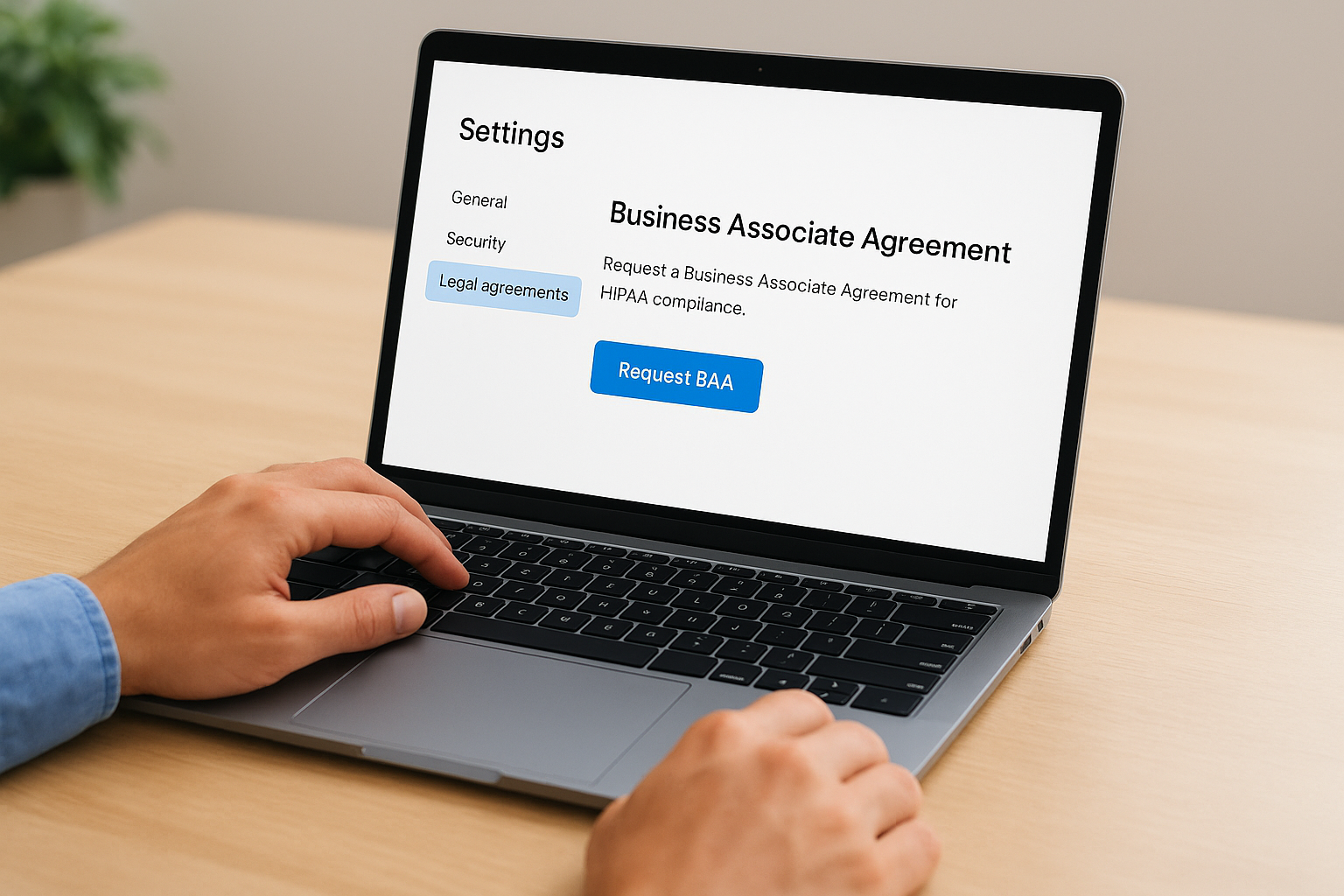
Make sure you are logged in as a team admin when you attempt this, because standard user accounts do not have access to the agreement request workflow.
Once you locate the BAA option, Dropbox walks you through a short intake process that captures your organization's information and confirms your plan eligibility. Complete every field accurately, since the information you provide becomes part of the legally binding document.
What to Expect After You Submit
After you submit the request, Dropbox typically reviews and countersigns the agreement within a few business days. You receive the fully executed document via email, and you should save a copy in a secure location immediately since you'll need it available for any compliance audit or breach investigation. Do not treat the confirmation email as sufficient documentation on its own; download and archive the actual signed agreement.
Your compliance and legal team should review the finalized BAA terms before you begin moving PHI into Dropbox. The agreement defines the scope of Dropbox's obligations and the boundaries of your own responsibilities. Understanding both sides of those commitments lets you build workflows that stay within the boundaries the agreement establishes, rather than discovering gaps after the fact.
How to configure Dropbox for HIPAA use
Signing a Dropbox HIPAA BAA gives you contractual coverage, but it does not automatically make your account compliant. You need to actively adjust specific settings inside your admin console to close the gaps that default configurations leave open. PHI stored in an account with factory-default sharing permissions is still at risk, even when a valid BAA exists.
Restrict sharing and link settings
Your first priority is locking down how files leave your Dropbox environment. By default, Dropbox allows team members to create publicly accessible shared links, which means anyone with the URL can view the file without authentication. Open that door on a folder containing PHI and you've created an unauthorized disclosure regardless of your BAA status.
Disabling public shared links and restricting external sharing to verified domains are among the most impactful configuration changes you can make for HIPAA compliance.
Navigate to your admin console and set the following controls:
- Shared link defaults: Change from "Anyone with the link" to "Only people invited" or "Team members only"
- External collaboration: Restrict sharing to approved domains rather than allowing sharing with any email address
- File request settings: Disable public file requests unless your workflow explicitly requires them and you've assessed the compliance implications
Enable audit logging and session controls
HIPAA's Security Rule requires covered entities to maintain audit controls that record activity in systems containing PHI. Dropbox provides team activity reports and audit logs on qualifying plans, but you need to verify these are active and that you're retaining the data long enough to meet your compliance obligations. Most healthcare organizations maintain audit records for a minimum of six years to align with HIPAA's documentation retention requirements.
Beyond logging, configure session management settings to enforce automatic timeouts on inactive sessions. This reduces the risk of unauthorized access when a team member leaves a browser window open on a shared or unattended device. Set your two-step verification requirement to mandatory for all team members, since optional enrollment creates inconsistent protection across your user base and introduces risk wherever a single account goes unprotected.

Next steps after you set it up
Completing your Dropbox HIPAA BAA and locking down your account settings puts you in a defensible position, but compliance is not a one-time event. Schedule a quarterly review of your sharing settings, active user accounts, and audit logs to catch configuration drift before it becomes a liability. Remove accounts for former employees immediately, verify that your two-step verification enrollment remains at 100%, and confirm that your archived BAA is stored somewhere outside Dropbox itself so you can access it during an audit even if account access becomes disrupted.
Your Dropbox configuration is one piece of a broader compliance picture. If your team also needs to connect healthcare applications to EHR systems like Epic or Cerner, the integration layer carries its own HIPAA obligations that go well beyond file storage. Launch your SMART on FHIR app with a managed, HIPAA-compliant integration platform and close that gap without building the infrastructure from scratch.
The Future of Patient Logistics
Exploring the future of all things related to patient logistics, technology and how AI is going to re-shape the way we deliver care.
Thank you! Your submission has been received!
Oops! Something went wrong while submitting the form.